
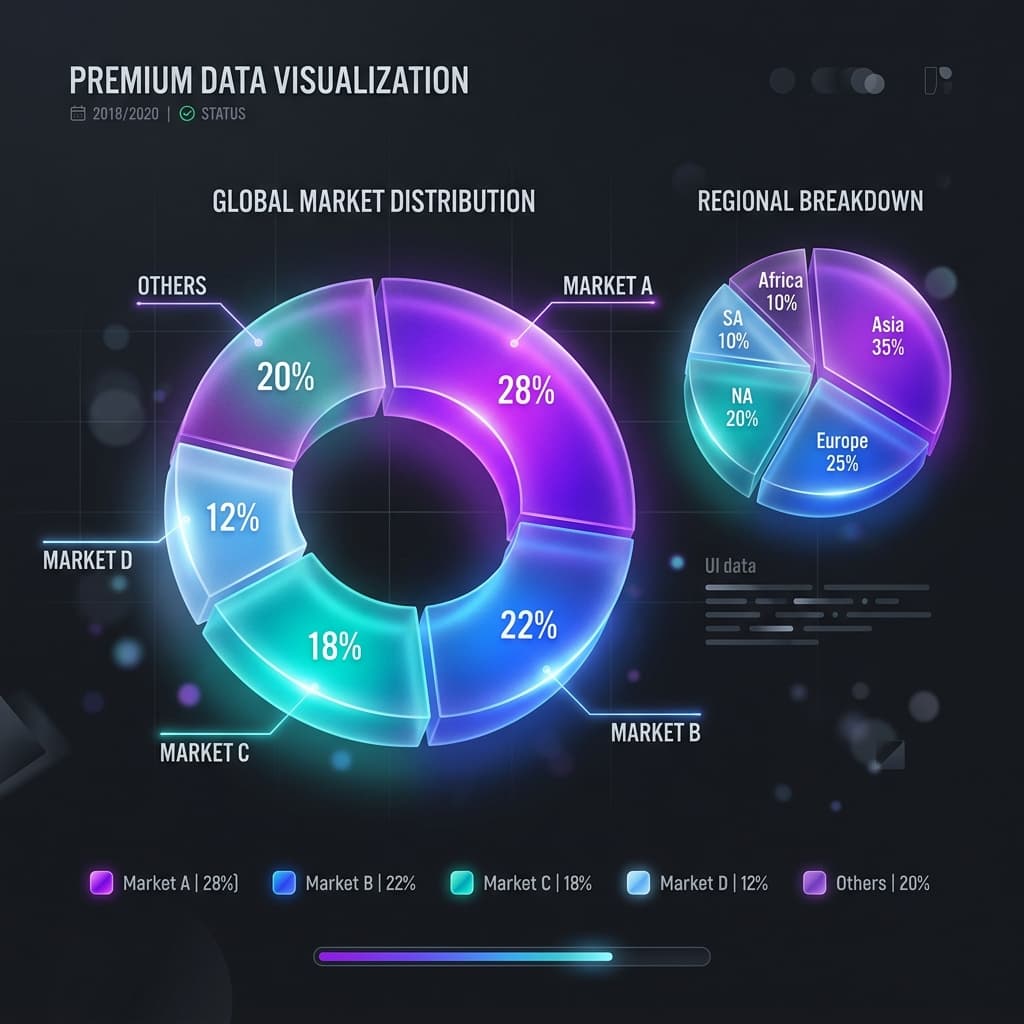
A pie chart (and its cousin, the doughnut) is for one job: showing how a few pieces add up to 100%. Market share among three vendors. A budget split. Survey answers where people picked one option. If that is not the job, use a bar chart.
Pies have a bad reputation because they get used for everything else. Ten similar slices, multiple-choice “check all that apply,” 3D exploding charts. Those fail. A three-slice pie with one obvious majority still does something a bar chart does not: it looks like a whole.
Why pies are hard to read (and when that does not matter)
William Cleveland and Robert McGill’s 1984 work on graphical perception ranked how accurately people decode visual encodings. Position on a shared scale (a bar) beats angle and area (a pie slice). Stephen Few’s essay Save the Pies for Dessert is the usual citation for “just use bars.”
They are right when you need to compare close values. 24% vs 26% is a bar-chart difference. It is not a pie-chart difference. You will stare at the legend.
They are less right when the message is composition, not ranking. “Two-thirds of spend is payroll” lands faster as a slice than as the tallest bar in a set that does not announce itself as 100%.
When to use a pie chart
Use one if all of these are true:
- The values are a complete, mutually exclusive set. They add to 100% (or to a known total you treat as 100%).
- You have five slices or fewer. Three is better.
- One or two slices are obviously larger. The takeaway is the dominance, not a photo finish.
Skip the pie if:
- People could pick more than one answer, so the bars would sum to more than 100%.
- You have a long tail of tiny categories. “Other” can save a five-slice chart. It cannot save a twelve-slice chart.
- The story is a trend. Pies do not do time. Use a line.
Pie chart vs doughnut chart
A doughnut chart is a pie with the middle removed. Same data, two practical differences:
| Pie | Doughnut | |
|---|---|---|
| Shape | Full disk | Ring |
| What you compare | Slice area and angle | Arc length on the ring |
| Center | Empty of meaning | Room for the total or the headline number |
| Best for | Simple share of a whole | Share of a whole plus a total in the hole |
Bottom line: if you want “$1.2M total” sitting in the middle of a budget split, use a doughnut. If you just need three slices and a title, either works. Neither fixes too many categories.
The “arcs are easier than angles” claim is plausible and often repeated. Do not bet a close comparison on it. If the slices are close, switch to bars.
Design rules that keep circular charts honest
Five slices, then “Other.” Thin slivers cannot hold a label. If a slice is too small to name, it should not be on the pie.
Start at 12 o’clock, largest first, then clockwise. People look at the top. Put the main slice there.
Label on the chart. Percentages next to or on the slice. A color legend across the room is how 18% and 22% get swapped in someone’s head.
One loud color. Highlight the slice the sentence is about. The rest can be quieter. Same idea as using color to point.
Flat, not 3D. Perspective makes the front slice look bigger. That is a lie, even when it is accidental.
How to make a pie or doughnut chart online
- Open the pie chart maker or doughnut chart maker. No sign-up.
- Enter each category and its value. Counts are fine; they are treated as shares of the total. Percents should add to 100.
- Check the preview. If you cannot name each slice at a glance, merge categories or switch to bars.
- Download PNG or JPEG.
Frequently asked questions
When should I use a pie chart instead of a bar chart?
When the point is “these parts make one whole” and you have a handful of unequal slices. When the point is “A is a bit larger than B,” bars win. Cleveland and McGill’s ranking is the reason: length on a shared baseline is easier to compare than angle.
Is a doughnut chart better than a pie chart?
It is better when you need the hole for a total or a short label. It is not automatically more accurate. Both fail the same way: too many slices, slices that are almost equal, or data that is not a closed set.
Can percentages on a pie exceed 100%?
They should not. If they do, the categories overlap (or someone rounded badly). Overlapping categories belong on a bar chart of counts, not on a pie.
How do I make a pie chart for free in a browser?
Use the CreateCharts pie maker or doughnut maker. Paste labels and values, set colors, export PNG or JPEG. No account. For a chart that is not a whole, make a bar chart instead.