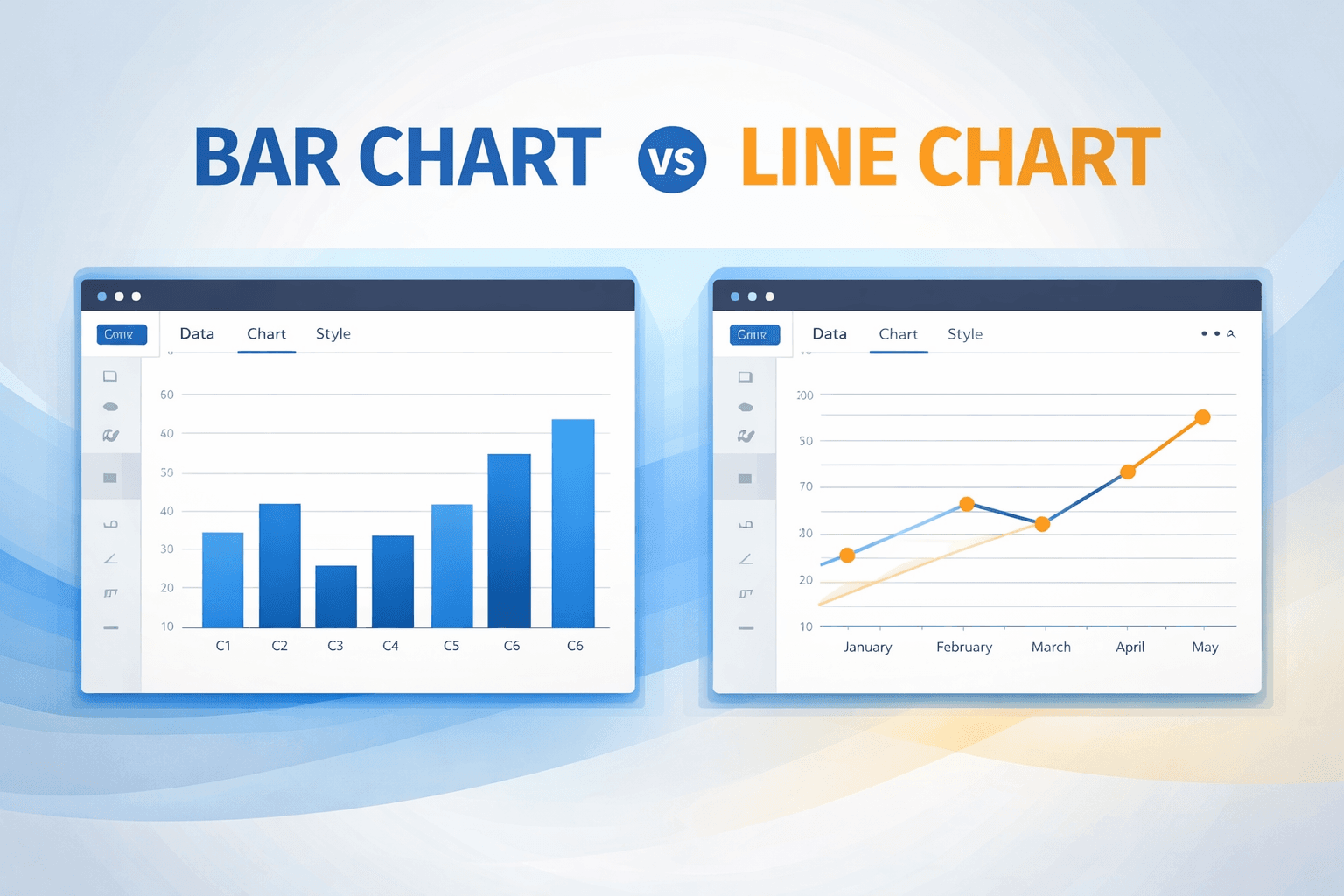

You can make a bar chart online in a few minutes: put labels in one column, numbers in the next, check that the axis starts at zero, then download a PNG or JPEG. You do not need Excel, a design tool, or an account.
Bar charts are the default for a reason. People compare lengths without thinking. That only holds if the chart is honest and the labels are readable. The steps below cover both the build and the rules that keep it from lying.
What you need before you start
Two columns. That is the whole dataset.
- Categories — the groups you are comparing (departments, products, channels).
- Values — one number per group.
Example:
| Department | Cups per day |
|---|---|
| Engineering | 42 |
| Marketing | 28 |
| Sales | 35 |
| Support | 18 |
If you have dates and you care about the trend, you probably want a line chart, not bars.
Design rules that actually matter
Skip these and the chart still “works.” It just misleads people.
Start the value axis at zero. Bar length is the number. If you start at 50, a bar of 60 looks four times a bar of 55. Line charts can sometimes crop the axis to show a small wiggle. Bar charts cannot.
Sort unless the order is already meaningful. Days of the week stay in week order. Product names usually should be sorted by value, largest to smallest, so the ranking is obvious.
Use horizontal bars when labels are long. “Organic search from EU mobile” does not fit under a skinny vertical bar. Lay the bars on their side and keep the type horizontal.
Leave a gap between bars. A gap of about half a bar’s width is a useful default. Huge gaps make the groups feel unrelated. No gaps make them look like a histogram.
How to make a bar chart online
- Open a browser chart maker. Go to the CreateCharts bar chart maker. There is no sign-up. You get a live preview next to a data form.
- Enter labels and values. Type them, or paste from a spreadsheet. The bars update as you go, which is the fastest way to catch a typo or a value sitting in the wrong row.
- Set the title so the chart can stand alone. “Daily coffee consumption” is weaker than “Engineering drinks the most coffee (cups per day).” Someone should understand it with the slide notes hidden.
- Color with a job in mind. One color for every bar is fine when the story is the ranking. If the story is “Support is the outlier,” paint that bar and leave the rest gray. More on that in how to use color in charts.
- Download PNG or JPEG. PNG for slides, docs, and the web. JPEG if you need a smaller file. CreateCharts does not export SVG.
You should have a file in your downloads folder. Drop it on the slide. Done.
Common mistakes
- Truncated axis. The most common way a bar chart lies. Keep zero.
- Too many categories. Past about 10–15 bars, people stop comparing and start scanning. Group the tail as “Other,” or split the chart.
- Rainbow bars. Different colors imply different kinds of thing. Same metric, same color, unless you are highlighting one bar.
- 3D. It distorts length. There is no good reason for it on a bar chart.
Frequently asked questions
How do I make a bar chart without Excel?
Use a browser tool. Paste two columns, adjust colors and labels, download an image. Excel is built to calculate. A chart maker is built to produce a picture you can put in a deck. Same numbers, less menu archaeology. The longer version is how to create charts online without Excel.
Vertical or horizontal bar chart?
Vertical (column) charts are fine for short labels and a few categories. Horizontal bars are better for long names and for ranking lists. If you find yourself rotating labels 45 degrees, switch orientation instead.
Can I make a grouped or stacked bar chart?
Not in CreateCharts today. The maker is for a single series of categories and values. If you need clusters or stacks, you are back in a spreadsheet or a heavier BI tool. For one clean comparison, a simple bar chart is usually what the audience wanted anyway.
Is CreateCharts free?
Yes. No account, no credit card. Make the chart and download PNG or JPEG.
Make one now
Open the free bar chart maker, paste the two columns, and export. If bars are the wrong shape for the data, pick line vs bar first.