Color on a chart tells people where to look before they read the title. That is useful if one color means one thing. It is noise if every bar is a different bright hue.
Use color as a highlighter, not as wallpaper. Same metric, same color. Extra color only when you are naming a group, a scale, or a single bar you want someone to notice from the back of the room.
The rainbow problem
A “rainbow chart” gives each category its own saturated color. Nothing stands out, because everything is shouting. The eye bounces. The legend becomes homework.
Worse: color starts to imply a difference you did not mean. January and February are the same kind of number. Painting them orange and purple suggests they are different species.
If two bars are the same type of value, they should look like the same type of value.
Three palettes, three jobs
Categorical (separate groups)
Use distinct hues when the groups are truly different: Engineering vs Sales vs HR. Keep them in a similar brightness range so one department does not look “more important” just because the swatch is neon.
Cap the set. If you need eight categorical colors, you probably need fewer categories, or a chart that does not rely on hue to tell them apart (direct labels, small multiples on a multiline chart).
Sequential (low to high)
Use a single-hue ramp, light to dark, for a scale: density, temperature, revenue. Light = low, dark = high is the convention people already have. Jumping from yellow to purple in the middle of a scale looks categorical when it is not.
Accent (one number is the point)
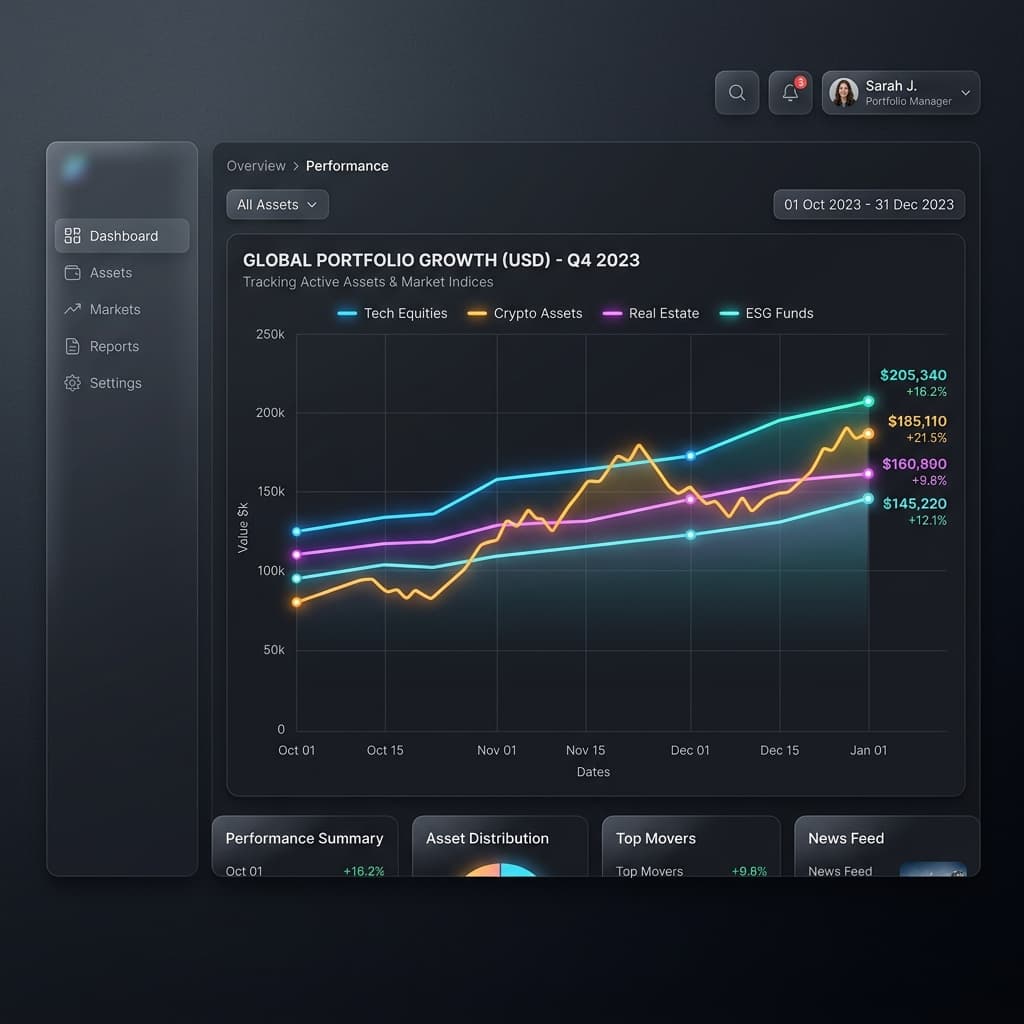
This is the move that earns its pixels. All bars gray, Q4 in your brand color. All lines muted, the plan in a heavier stroke. You are not decorating. You are pointing.
Rules that keep charts readable
Start in gray. Add color only where the sentence needs it. Gray is not sad. It is a quiet stage.
Contrast against the page. Dark deck, brighter marks. White report, deeper marks. If the bars disappear when you squint, they will disappear on a projector too.
Do not use red vs green as the only signal. The National Eye Institute notes that color vision deficiency is common, especially red–green. Figures often cited are about 8% of men and 0.5% of women with Northern European ancestry. Pair orange with blue, or green with blue. Also vary lightness, not only hue.
The grayscale test. Screenshot the chart, drop the saturation. If the categories collapse into one mush, hue was doing all the work. Someone with color vision deficiency was already seeing a version of that mush.
Color by chart type
| Chart | Default | When to add more color |
|---|---|---|
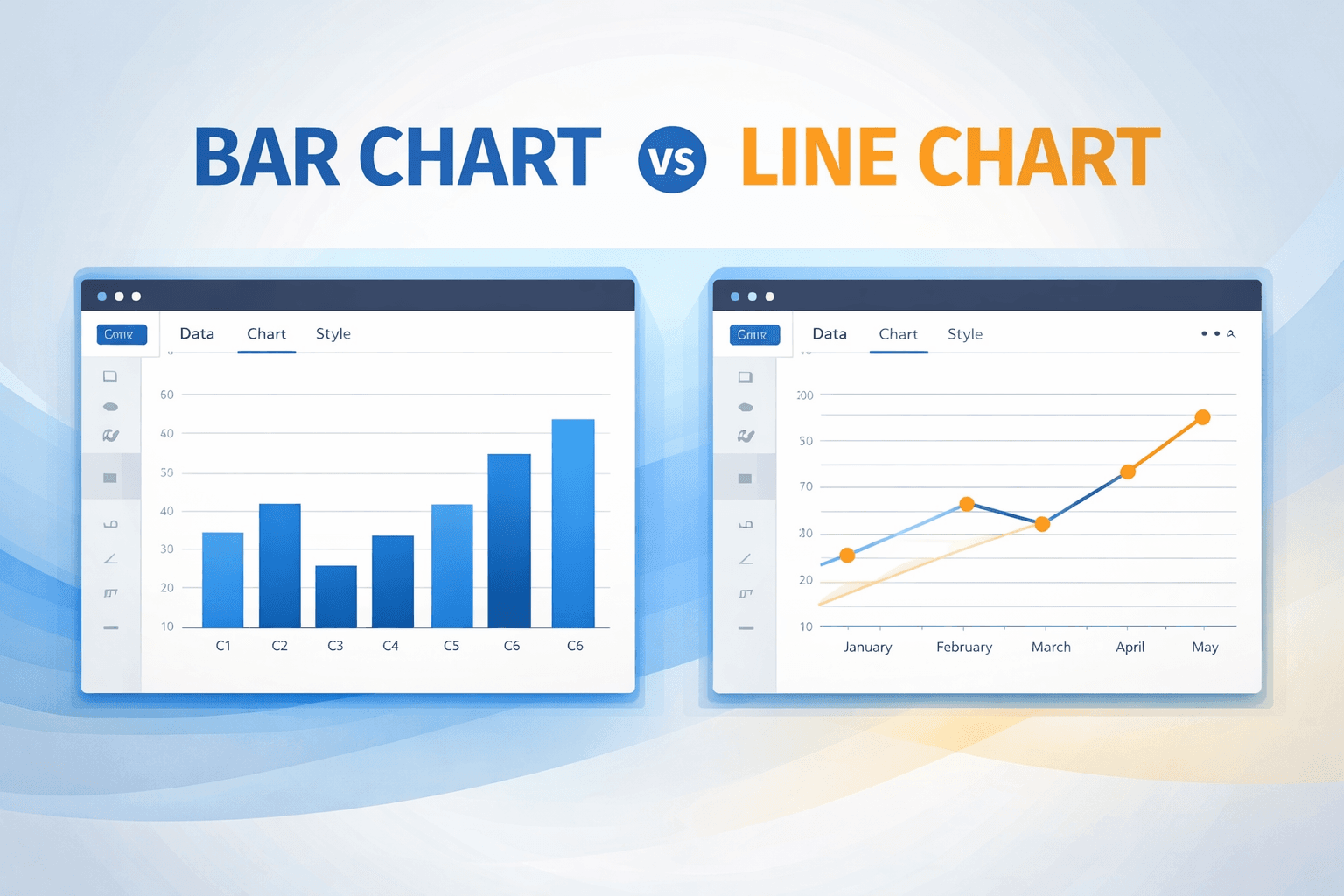
| Bar | One color for all bars | Highlight one category |
| Line | One line, one color | Rarely needed |
| Multiline | One color per series, muted extras | Hero series stays loud |
| Pie / doughnut | Quiet slices, one loud slice | Never a full rainbow of equals |
Pie charts with five similar brights are how slices get misread. When to use a pie at all is the prior question.
Frequently asked questions
How many colors should a chart use?
As few as the story needs. One is enough for a single series. Categorical charts can hold a handful of distinct hues if the groups are real. More than that, label directly and gray out the rest, or split the chart.
What colors work for color-blind readers?
Avoid red–green as the only difference between “good” and “bad.” Orange/blue or blue/green with a lightness gap travels better. The grayscale test is faster than memorizing palette names.
Should every bar be a different color?
No. Different colors say “these are different kinds of thing.” Ranking coffee consumption by department is one kind of thing. Use one fill, or one highlight.
Can I apply a palette without picking hex codes?
CreateCharts ships themes so you are not mixing primaries by hand. Open the chart maker, pick a type, then change colors on the series you care about. Download PNG or JPEG. No account.
Put it on a chart
Color will not save the wrong type. If you are still choosing the shape, read bar vs line, then make it in the free chart maker.