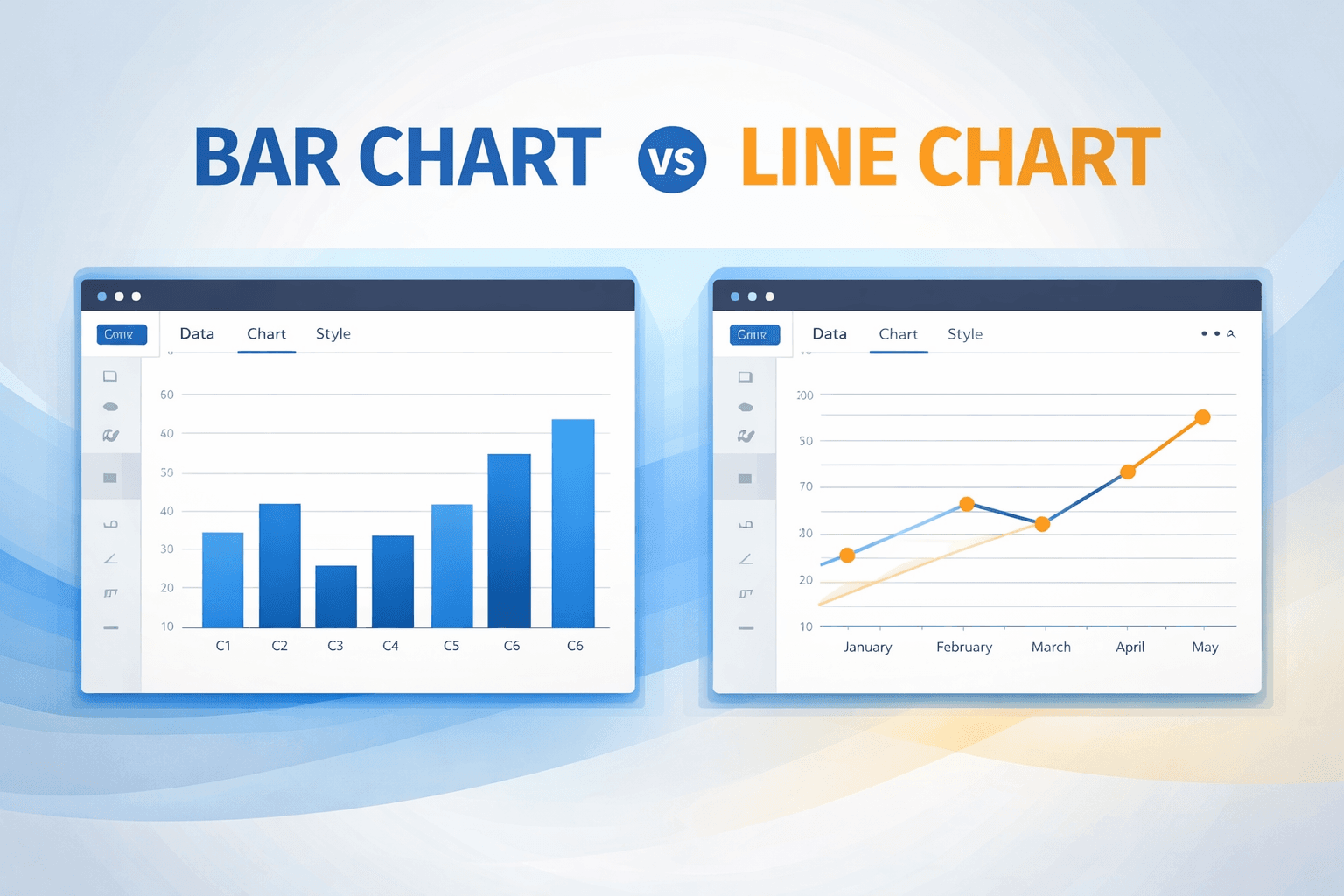
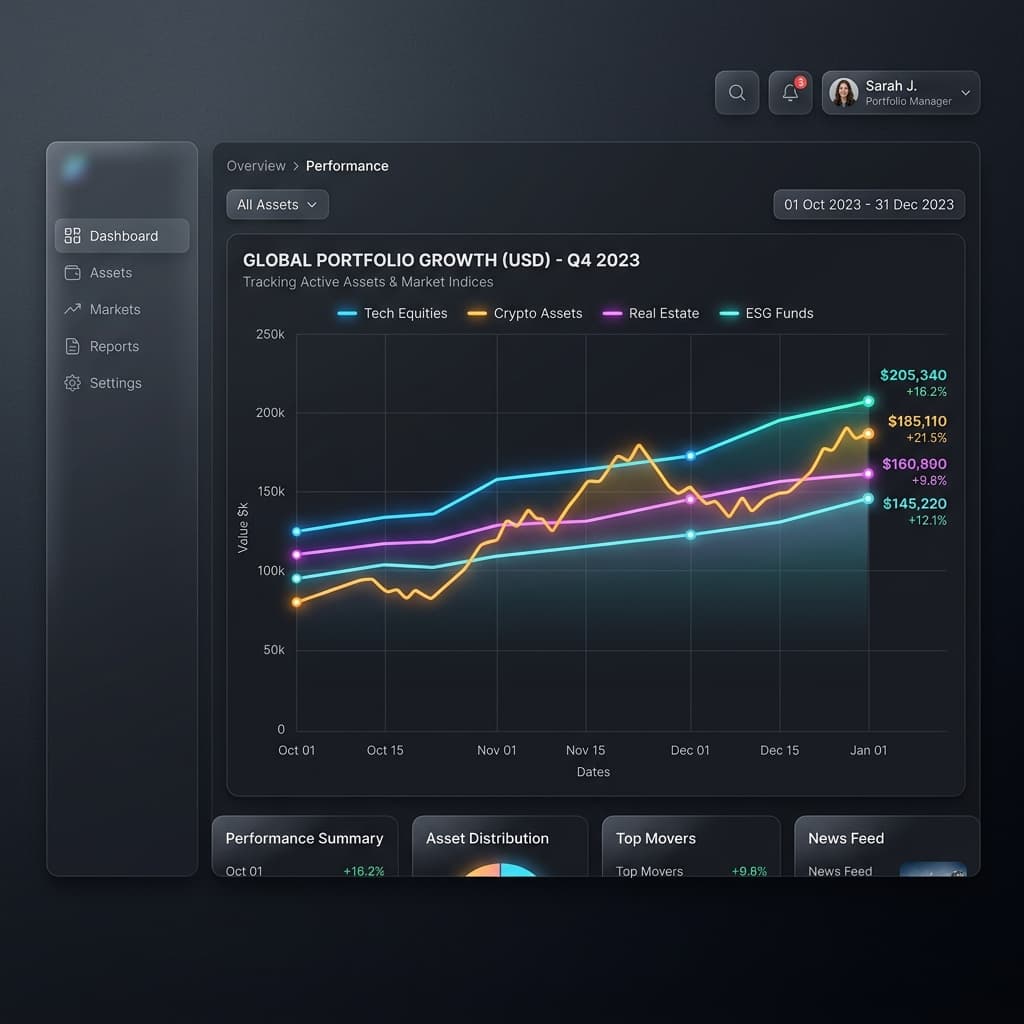
A multiline chart plots two or more series on the same time axis so you can compare trends in one picture. It is the right tool when you care about how lines move together: three products, four regions, a target vs actual.
It falls apart when you add “just one more” series. Six overlapping lines is not more insight. It is spaghetti. The viewer traces one color, loses it at a crossing, and gives up.
If you only have one series, use a plain line chart. If the x-axis is categories rather than time, use a bar chart.
What is a spaghetti chart?
A spaghetti chart is a multiline chart with too many series, similar colors, and no hierarchy. Lines cross. Legends sit at the top. Nobody can follow a single path.
A workable limit is four or five lines. That is a rule of thumb, not physics. Four quiet lines beat two screaming ones. Eight lines is almost always a different chart, or several small ones.
If you must show more series:
- Keep the top few, dump the rest into “Other.”
- Draw the hero line in color and the rest in gray.
- Split into small multiples: one small chart per series, same scale, sitting in a row.
How to keep a multiline chart readable
Label the lines on the chart. A color key at the top forces a matching game: line, legend, line, legend. Put the name at the end of the line (CreateCharts can show an end label). The last point is usually “now,” which is where people look first.
Give one line the floor. Your company, the plan, the series the sentence is about: thicker, stronger color. Comparison lines: thinner, muted. A forecast or target can be dashed so it does not pretend to be history.
Aggregate if the line turns into fuzz. Daily data for three series over a year is a thousand points. Weekly or monthly totals still show the trend and stop the scribble.
Quiet the grid. You already have several strokes. Keep horizontal guides light. Drop vertical gridlines unless you are pointing at a specific date.
Color is a limited budget. Each extra hue is a claim that this series is a different kind of thing. See color in data visualization if the palette is doing too much.
How to make a multiline chart online
- Open the multiline chart maker. No account.
- Put the timeline in the x-axis (months, weeks, quarters).
- Add one row per series: name, values, color.
- Turn on end labels if the names fit. If they collide, you have too many lines or the names are too long.
- Download PNG or JPEG for the slide.
Paste from a sheet if you already have the grid. Watch the preview. If you cannot tell the lines apart at a glance, neither can your audience.
When a multiline chart is the wrong choice
- More than five noisy series. Split or aggregate.
- Categories, not time. Connecting “North” to “South” with a line implies a trip. Use bars.
- You only care about the latest ranking. A sorted bar chart of the last period is clearer than a year of crossings.
- The series live on wildly different scales. Revenue in millions next to a conversion rate in percents will squash one of them. Two charts, or a secondary axis you are prepared to explain (most rooms are not).
Frequently asked questions
How many lines can a multiline chart have?
Stay at four or five unless the extra lines are visually quiet (gray, thin, in the background). Past that, people cannot track a series through crossings. Highlight, group, or split the chart instead of adding more color.
Multiline chart vs several line charts?
One chart is better when the point is comparison on a shared scale. Separate charts (small multiples) are better when each series needs to be read on its own, or you have more than a handful. Shared y-axis, same time range, or the comparison is fake.
Can I make a multiline chart in the browser for free?
Yes. CreateCharts will plot several series, let you set colors and end labels, and export PNG or JPEG. No sign-up. It is not a live dashboard. Paste, download, put it in the deck.
Make the comparison
Open the free multiline chart maker. If you are still deciding between bars and a single line, start with bar chart vs line chart.