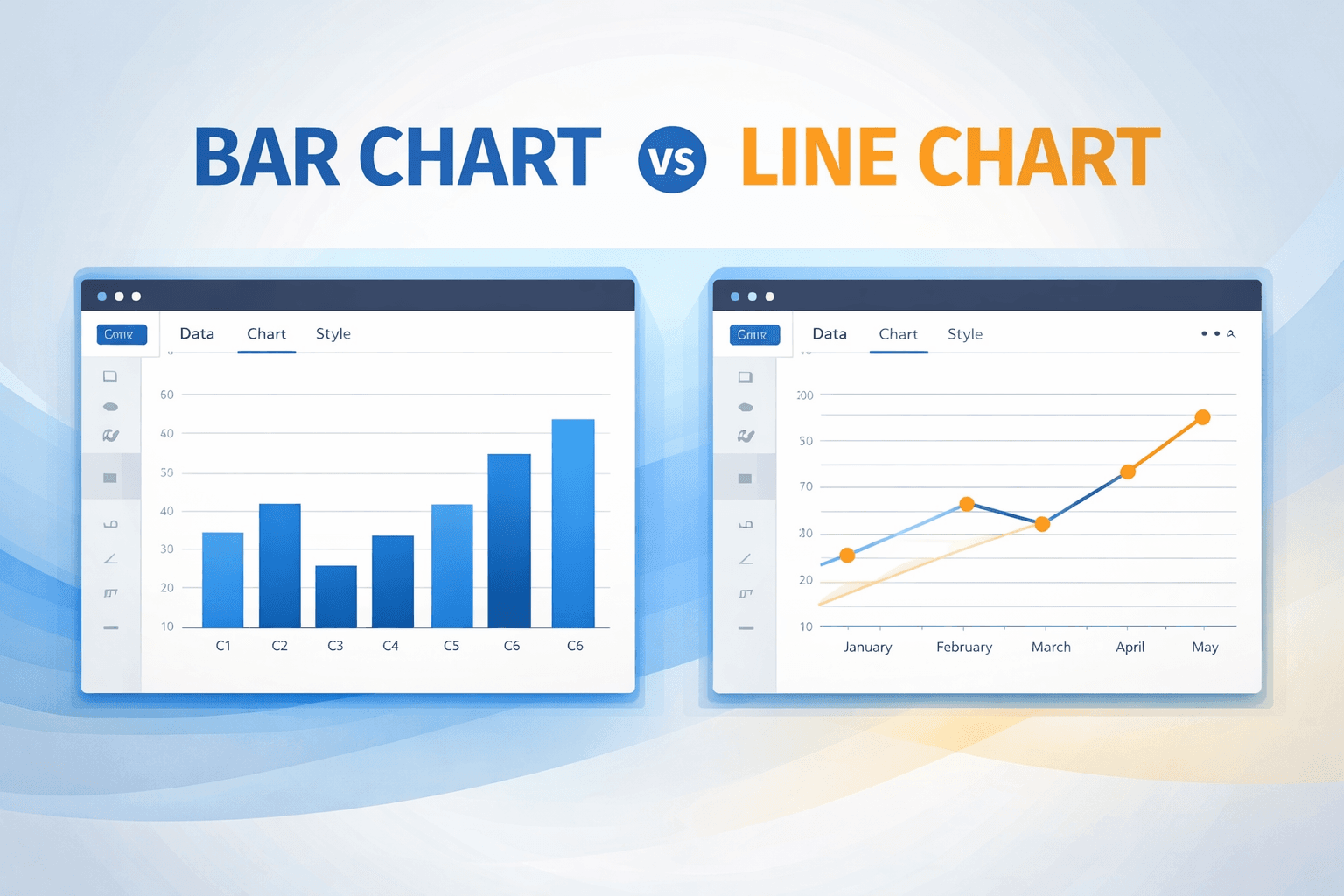
Use a bar chart when you are comparing separate groups. Use a line chart when you are showing how a number changes over time. That one distinction settles most of the arguments that start when a slide goes up and nobody can agree what the data is saying.
The two charts can hold the same spreadsheet. They do not mean the same thing. A bar says “these things sit next to each other.” A line says “this thing moved from here to there.” Mix them up and you don’t just make a messy slide. You imply a relationship that is not there.
What is the difference between a bar chart and a line chart?
A bar chart compares values across categories that do not flow into each other: products, teams, countries, survey options. A line chart tracks one measurement along a sequence, usually time. Bars ask “who is bigger?” Lines ask “which way is this going?”
If the order of labels on the x-axis is arbitrary (alphabetical, by size, by whoever shouted loudest), you want bars. If the order is a clock, a calendar, or another real sequence, you probably want a line.
When should I use a bar chart?
Use a bar chart when the groups are independent. Sales by product. Traffic by channel. Headcount by department. There is no path from “Organic search” to “Paid search.” They are just two buckets.
Bars also win when the point is the size of each value, not the slope between them. Q1 vs Q2 vs Q3 as chunks of a budget is a bar-chart job, even though the labels are dates.
If the labels are long, switch to a horizontal bar chart. Then people can read the names without tilting their heads.
For the actual build, see how to make a bar chart online.
When should I use a line chart?
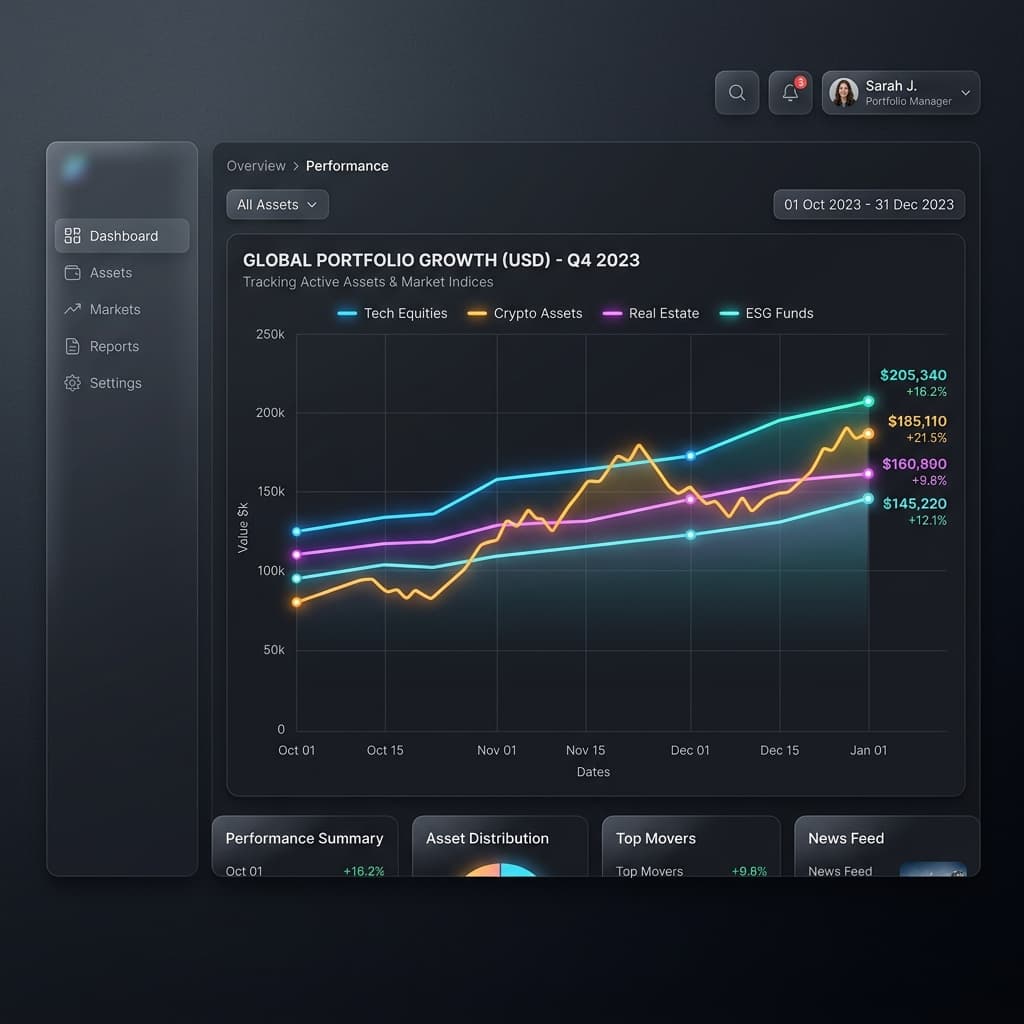
Use a line chart when each point belongs to the next one. Weekly visitors. Monthly revenue. Daily temperature. The line is doing work: it tells the eye to travel left to right and notice the slope.
Lines also handle dense series better than bars. A day of stock prices as bars looks like a fence. As a line, you can still see the shape.
If you need several series on the same time axis, that is a multiline chart, not a pile of separate bar charts.
The connecting-lines mistake
This is the one that shows up in decks every week.
You have Product A at 10, Product B at 50, Product C at 20. You plot them as a line. The line climbs, then drops. Viewers read that climb as growth. There was no growth. You cannot “move” from Product A to Product B.
If shuffling the x-axis would still be a valid chart, do not draw a line. Sort by value, sort A–Z, it should not matter. Time does not shuffle.
Bar chart vs line chart
| Bar chart | Line chart | |
|---|---|---|
| Job | Compare groups | Show a trend |
| Data | Separate categories | Time or another sequence |
| What the eye reads | Height or length of each bar | Slope and direction |
| X-axis order | Size, A–Z, or whatever helps | Must stay in sequence |
| How many points | Works best under ~15 categories | Fine with dozens or hundreds |
| Easy to get wrong | Starting the axis above zero | Connecting unrelated categories |
Bottom line: categories get bars. Time series get lines. If time is on the axis but you care about each period as a chunk, bars are still allowed.
Can I use a bar chart for time?
Yes. Time is continuous, but you do not owe anyone a line.
Use a line when the sentence is “signups climbed through the year.” Use bars when the sentence is “Q3 was bigger than Q2.” Same dates, different question.
A line will always whisper “trend.” If that whisper is not the point, it is noise.
How do I choose in 10 seconds?
- Is the x-axis time or another real sequence? If no, use a bar chart. Stop there.
- If yes: do you care more about the shape of the change, or about each period as its own number? Shape → line. Each period → bars.
That is the whole framework. You do not need a taxonomy of 40 chart types to get this right.
Frequently asked questions
Is a bar chart or a line chart better for sales data?
Neither is “better.” Monthly sales over a year is usually a line chart. Sales by region or by product is a bar chart. If you put regions on a line, you invent a journey between places that are not on a path.
Can a line chart start above zero?
Sometimes, if you are zooming in on a small change and you label the axis clearly. A bar chart should not. Bar length is the value. Cut the baseline and a 60 next to a 55 looks like a blowout.
What if I have categories and time?
Split the question. One chart for “how did the total move?” (line). Another for “who made up last month?” (bars or a pie, if the parts really add to 100%). Cramming both into one picture is how you get a legend nobody reads.
Make the chart
Pick the type, paste the numbers, download PNG or JPEG. No account.
Start with the bar chart maker or the line chart maker. If you are still fighting Excel’s defaults, make the chart in the browser instead.